Showing posts with label openoffice. Show all posts

Sunday, August 21, 2011

protecting a section / paragraph in a document

Here are the two ways which I protect portions of a document:

 ...wanting to protect it often occurs for important content which I'll also frame (hence protecting frames)

But sometimes I just want to protect a block of text to prevent accidental overtyping...

 Create a section, then paste in your text, and then 'protect' the section. Example...


Don't let the actual text (gcc / pthread, etc) put you off, I just wanted to show a real world example.

Here I have included in my document some commands, which I will later use as reference. What I don't want to happen is to accidentally overtype some of those commands whilst editing my document, and losing the concrete reference.

Frames or Sections, both will do a job for you in protecting a block of content - choose whichever you find most convenient :)


Notes and Further Reading:

How to protect a section is discussed in Chapter 4 of the LibreOffice / OpenOffice documentation (links below)

 Chapter 4 pdf is 1.4MB and the .odt version is much smaller.

If you have LibreOffice or OpenOffice installed then you might have local copies accessed by pressing F1 (help)

Tuesday, November 2, 2010

LibreOffice / OpenOffice - Where did my 'Formatting' toolbar go?

The toolbars in LibreOffice / OpenOffice are unlocked by default.

Whilst this is great for usability, it makes it easy to lose a toolbar also.

So you go into your application Writer and here is what you see:

When you would normally have above the "1 2 3 4 5" ruler something that mentioned Fonts and Font sizes???

...and here is what you are missing:


In most cases it is just a case of ticking the checkbox in View -> Toolbars -> Formatting
and hopefully it reappears.

But what if View -> Toolbars -> Formatting is already checked?


Well as toolbars are unlocked by default, it is all too easy to drag them off somewhere by mistake.
Maybe the family were around and little Bernard clicked on the Word Processor icon and had a little play around. Or perhaps you had your finger pressed on the mouse and somebody talked to you from the side.
It is easily done.

In my case, the toolbar had been moved to the right of the main toolbar and was not easy to see at first glance. But having located it, then it is just a case of dragging it back to where it should be (below the main "File | Edit | View" toolbar.

The little grabber  is marked as 5 horizontal lines on top of each other, and if you hover over it then you should see a four pointed symbol, which indicates that you are about to perform a move.


So you have used the grabber (shown above) and pulled the toolbar back to where you usually like to see it.


Locking toolbars - a must really:

I have used OpenOffice for many years, and have never felt the need to move toolbars about. However, I know some folks like to move them to be down the sides or whatever their preference is.

So for me personally, unlocked toolbars are a waste.

Unless you feel the need to move things about then I would recommend for each of the toolbars, that you 'Lock Toolbar position' as shown here:


To the right of each toolbar there should be a little icon which has an arrow at the base and is clickable.
When you click it then the drop down menu (shown above) should appear, and you should 'Lock Toolbar Position'

Having the toolbars locked, means you can leave the computer on, and little Bernard at the controls, and your toolbars will still be there when you check later :)


Ubuntu and LibreOffice / OpenOffice:

Ubuntu have their own desktop 'look and feel', which gets tweaked slightly with each release.
The default themes are pretty usable by my reckoning, however when the application themes are touched up to bring them into line with the desktop themes, then sometimes there is an oversight.

What I found when I used an Ubuntu Lucid machine recently, was that OpenOffice had been touched up to bring it into line with the desktop theme, and in the process the little grabber was either hard to see or missing.

To reiterate: If you are using Ubuntu and cannot find the little grabber (shown below)...

...then just grab a bit of greyspace where the grabber should be, and you should be able to move that way.

Whilst this is not ideal, it is the price you pay for using a Linux Distribution which puts a high priority on Desktop themes and consistent look and feel.

I prefer Debian, where the defaults do not involve tinkering with the Application look and feel, (although I am free to switch on a different application theme (say crystal) from within Writer itself)

Friday, October 29, 2010

LibreOffice / OpenOffice and repeating without 'cut paste'

Working on a recent document that involved some figures had me wondering how to have the same figures repeated.

I have used the Free Open Source Office Suite for 7 years, and wondered how to get the result without using 'Cut and Paste'

The particular section I will be repeating, is unusual in that it includes many numeric results, but not enough to really justify living in a separate spreadsheet.

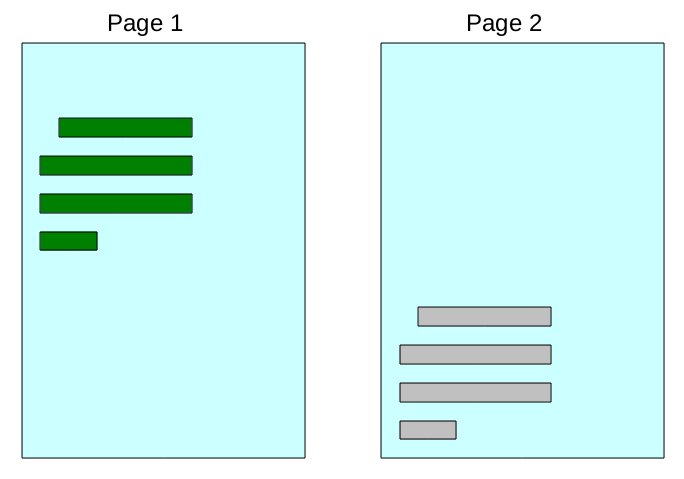
Conceptually here is what I want:


One way to achieve this is to use Sections and the Navigator
( My icon looks more like a four pointed star. Compass or Star will do and hovering should say 'Navigator' )

Page2 in that concept diagram I show the repeated text in grey, as it is important that it is non-editable
( Just too easy otherwise to fall in and edit things in the wrong place! )


I list the steps involved and then run through with some screenshots:

  1. Insert -> Section          and give the section a name say 'Section1'
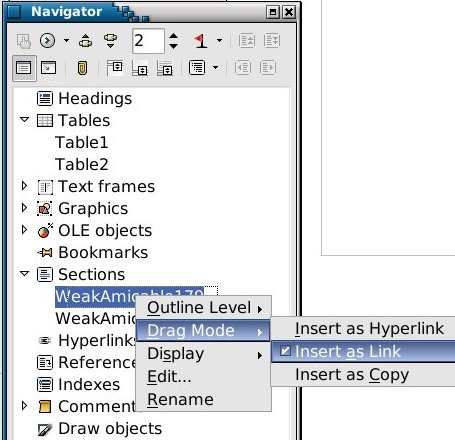
  2. Open Navigator and Right Click on 'Sections' to get a drop down menu
  3. From that drop down menu select 'Drag Mode' then 'Insert as Link'
  4. In your document move to where you want the copied section to go, and then drag 'Section1' from the Navigator into place.
  5. Right click the new entry in 'Sections' within Navigator and select 'Rename'. Make name Section1copy 
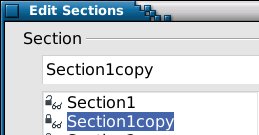
  6. Right click the new entry in 'Sections' and select 'Edit' and understand what the padlock symbols say


1. Insert -> Section

2 & 3 in Navigator:

6 ... padlock symbols:

If all went well then you should see something like the above. Section1 is unlocked (editable), whereas Section1copy is locked and will show as 'read-only' in the bottom status bar.


The quicker way of achieving the same result:

Having already created a section and populated it with the text which you will be repeating, just do Insert -> Section and check the 'link' checkbox.

It is not necessary to use the Navigator at all. However once you begin repeating sections and including links in your documents, then it is probably worth knowing your way around the Navigator feature.


The ultra fast way of achieving a similar result (Paste Special):

Copy and Paste but keep your finger on Shift when you Paste.

Select 'DDE link' from the 'Paste special' menu that pops up.


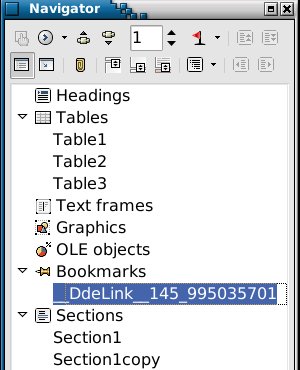
In order for the DDE link to work, a new Bookmark will have already been created in Navigator like so:


This type of link is marked 'soffice' internally and has details that look similar to the following example:


The advantage of using this 'Paste Special' DDE link way is speed obviously, and you do not have to create a Section around your text in preparation.

Where using Sections wins out is in complex documents, where perhaps you have repeated different blocks of text. Having the Sections clearly identified in Navigator can be a real win for that complex case.


Avoiding the startup 'Update all links' prompt:

Having setup a document with a repeated Section as described, you may then see this on opening your document:

And switching that off can be achieved in Tools -> Options -> Writer -> General


so that 'Update links when loading' is set to 'Always'


Deleting Sections and clearing up:

Use the Navigator and right click 'Edit' the section you want to remove.

Within 'Edit' you have a 'Remove' button which will do the trick.

Clearing up:
The text block I was copying was prepared as a table by me.

What I noticed was that removing the section did not delete the text copy itself, but merely reverted it to being 'standalone' typical text. A handy feature perhaps but do manually delete the text if that is not what you wish to be left with.


Links and further reading: